Prepare Mesh for the Auto Rig tool
The Auto Rig tool requires a Static Mesh facing +X, +Y, -X, or -Y. Preparing the mesh with the correct orientation ensures that it is exported properly and helps produce the best possible Auto Rig results.
Skeletal Mesh
-
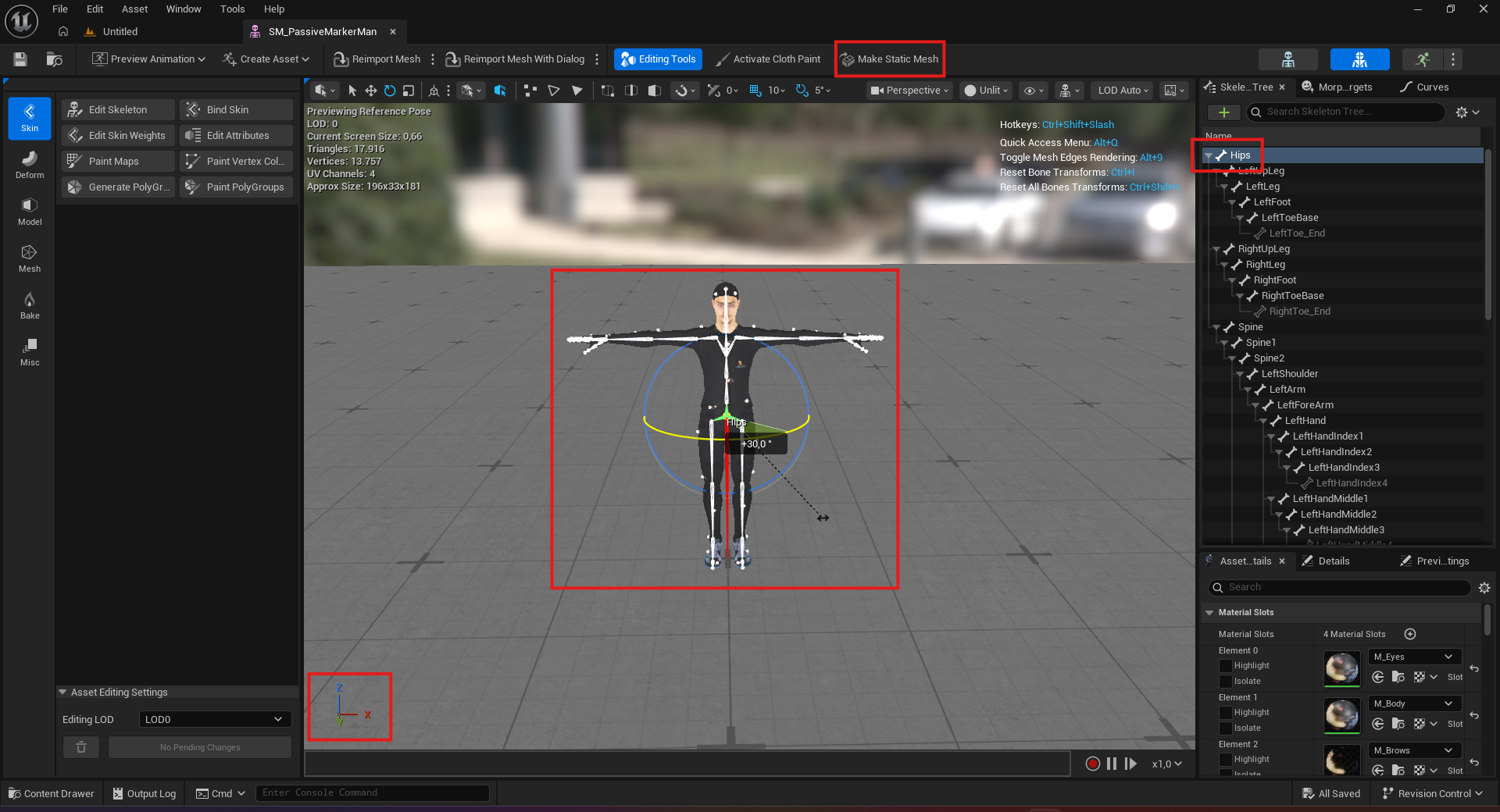
Open the character in the Skeletal Mesh Editor.
-
Check that the character faces +X, +Y, -X, or -Y. If it is not aligned with one of these axes, select the root bone and rotate it around the Z axis until the character faces a supported direction (press
Eto activate the Rotate tool, then drag the rotation gizmo in the viewport). -
Select Make Static Mesh from the toolbar and save the generated Static Mesh. The new Static Mesh preserves the root rotation applied in the Skeletal Mesh Editor.
-
In the Auto Rig tab, set Forward Axis to the direction in which the prepared Static Mesh now faces. For example, if the character faces -Y, select “-Y”. StudioTwin uses this setting to orient the mesh correctly when exporting it for auto-rigging.
Static Mesh
-
Open the Static Mesh in the Static Mesh Editor.
-
If the character already faces +X, +Y, -X, or -Y, continue to the last step.
-
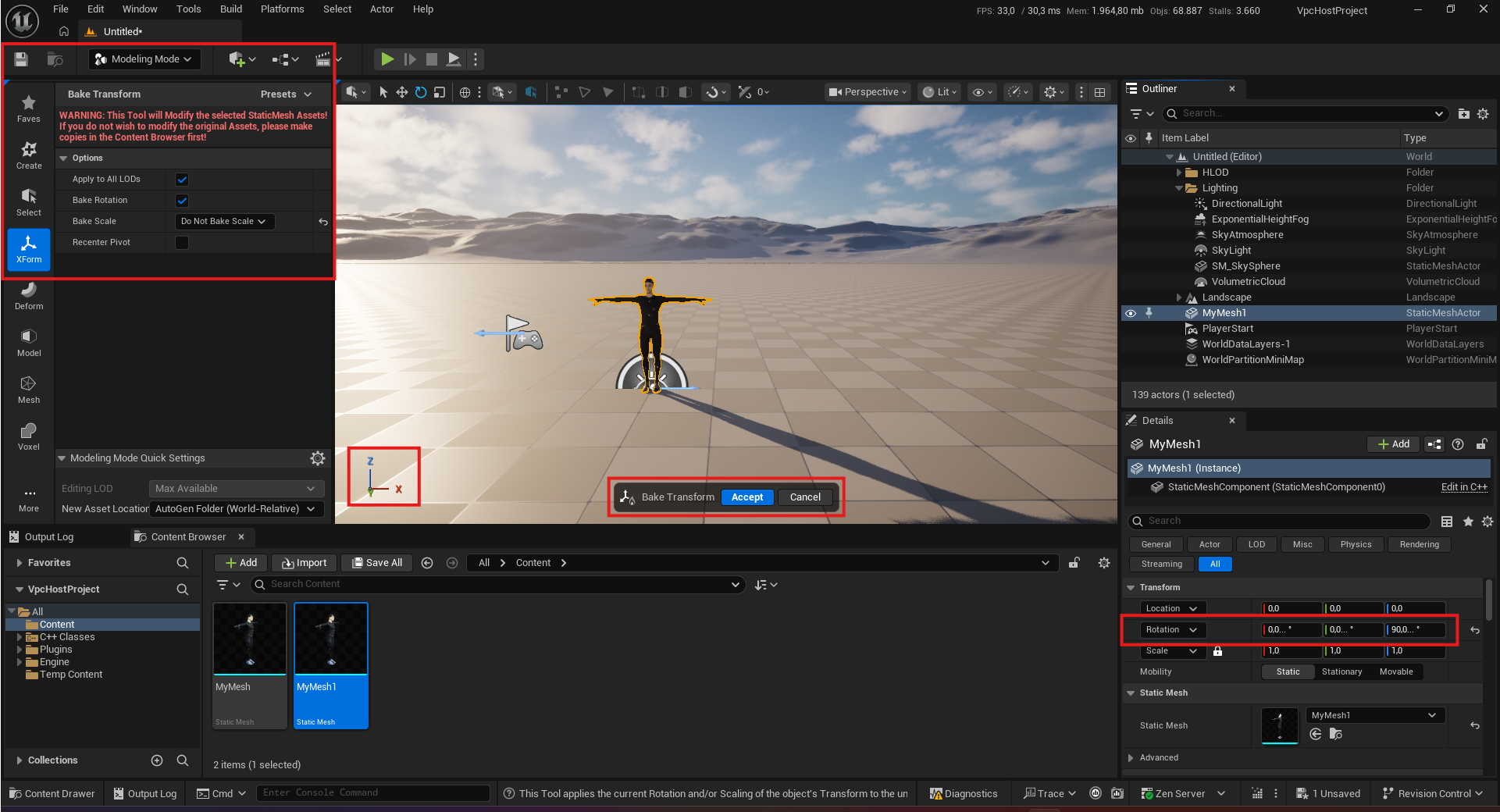
If it does not, duplicate the Static Mesh in the Content Browser to preserve the original asset, then drag the duplicate into the Level.
a. Rotate the Static Mesh Actor around the Z axis until the character faces one of the supported directions.
b. With the actor selected, open Modeling Mode by pressing
Shift+5and select XForm > Bake Transform. Use the following settings:- Bake Rotation:
true - Bake Scale:
Do Not Bake Scale - Recenter Pivot:
false
Select Accept to apply the actor's rotation to the Static Mesh asset.
- Bake Rotation:
-
In the Auto Rig tab, set Forward Axis to the direction in which the prepared Static Mesh now faces. For example, if the character faces -Y, select “-Y”. StudioTwin uses this setting to orient the mesh correctly when exporting it for auto-rigging.
For more information about Modeling Mode and Bake Transform, see Epic Games' Modeling Tools documentation.