UE MCP
Unreal Engine 5.8 ships a native MCP server, which StudioTwin integrates with. This allows an MCP agent to use StudioTwin's generation toolkits alongside Unreal's editor tools for virtual-production workflows.
Install the StudioTwin Agent Skill for this workflow:
npx skills add realtwin/studiotwin-mcp-skill
For setup options and supported workflows, see the StudioTwin MCP overview.
The Model Context Protocol is currently an experimental feature of Unreal Engine 5.8. As such, both the engine's MCP implementation and StudioTwin's integration are subject to change. This feature is exclusively available for projects running UE 5.8 or later.
To utilize MCP within StudioTwin, you must first ensure the Unreal Engine MCP infrastructure is correctly configured in your project.
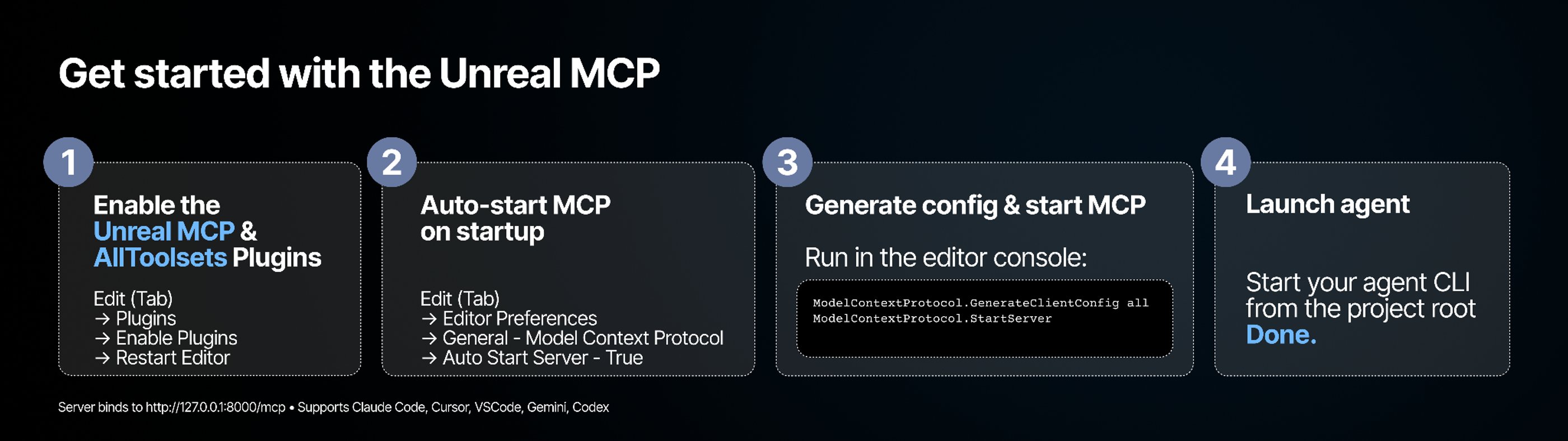
This path requires Unreal Engine 5.8 or newer and StudioTwin 3.0.0 or newer. Install the StudioTwin plugin build compiled for the exact Unreal Engine version used by the project.
1. Enable the StudioTwin Plugin
If you have not already installed the StudioTwin plugin, follow the instructions on our Installation Page.
2. Enable the MCP Plugin
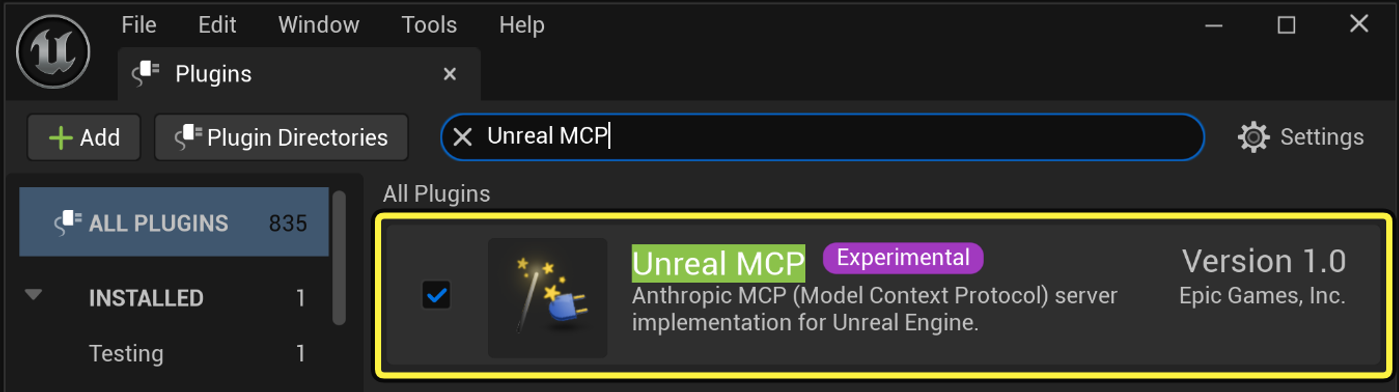
- Open your project in Unreal Engine 5.8 or newer.
- From the main menu, go to Edit > Plugins.
- Enable the Unreal MCP plugin.
- Enable the All Toolsets plugin. (Optional)
- Restart the Unreal Editor if prompted.
The All Toolsets plugin is a convenient way to load all default Unreal Engine toolsets at once. Enabling this is recommended, as it allows the agent to fully interact with the engine, granting it the ability to search the Content Browser, place objects in the level, and modify assets. However, if you prefer to be selective about which functions are exposed to the agent, you can still find and enable these toolsets individually.
3. Generate config and start the UE MCP Server
Run in the UE editor console:
ModelContextProtocol.GenerateClientConfig all
and
ModelContextProtocol.StartServer
4. Configure auto-start (Optional)
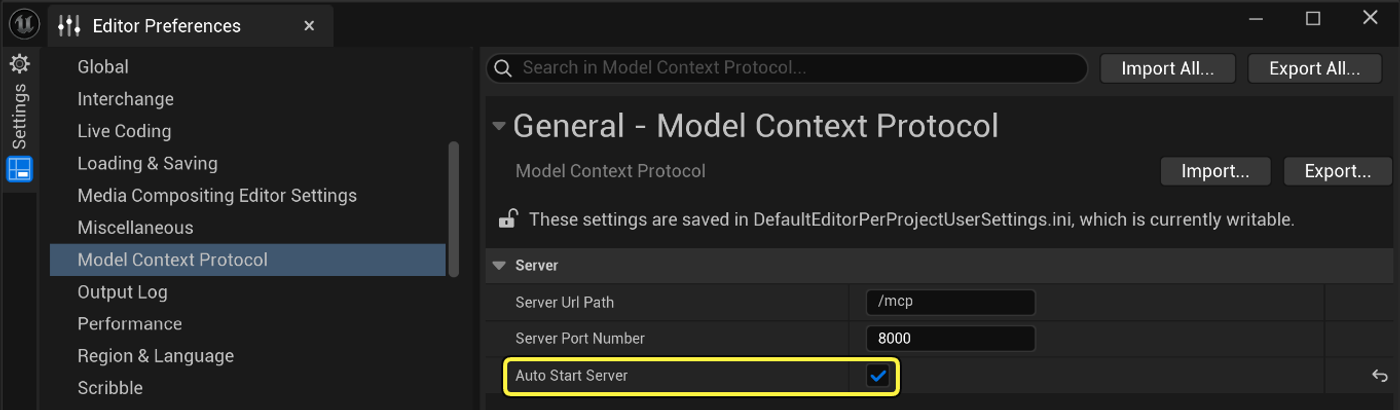
- Go to Edit > Editor Preferences > General > Model Context Protocol.
- Enable Auto Start Server.
5. Launch agent
Start your preferred AI agent from your Unreal Engine project root. Before generation, discover the live StudioTwin tools and confirm the expected toolkits are present. Tool discovery is a no-cost setup check; treat the live definitions as authoritative for names, inputs, costs, and limits. The agent can then use StudioTwin to generate assets and bring them directly into your project.
Concepts help you develop an image direction before continuing into other StudioTwin workflows. Use ConceptLab to create and refine Character or Object Concepts visually. The resulting images are prepared for use with downstream 3D mesh generation tools. Character rigging is Coming soon.
Try prompts like these:
Generate an environment map
Create a cinematic sunset environment map for this Unreal project, with warm golden light, dramatic clouds
and distant mountains.
Create character animation
Generate a natural walking animation for the character asset I have selected in the Content Browser.
Build a complete scene
Help me create a cinematic abandoned warehouse scene. Plan the environment map, materials, 3D assets
and ambient sound we need, then show me the generation plan before creating anything.