Results
Find results
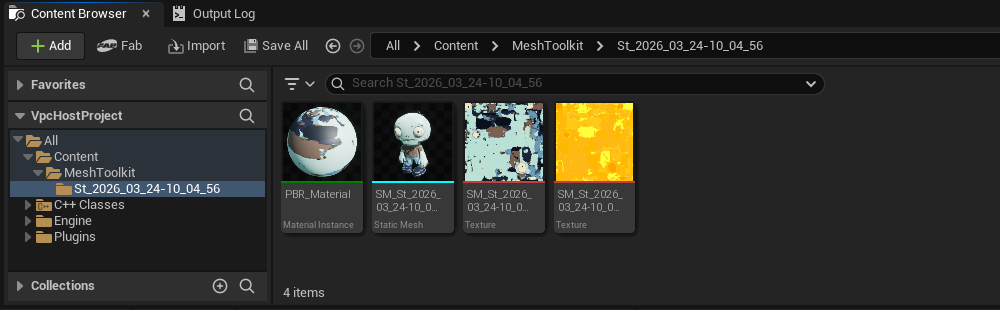
Once the result is ready, the generated mesh file is automatically downloaded and imported as a Static Mesh or Skeletal Mesh .uasset, depending on the tool. Corresponding textures, materials, and skeleton assets are also imported when available. Results are stored in your project's Content folder in a subfolder named MeshToolkit:
Content/MeshToolkit/St_{Timestamp}
To customize the default output directory, navigate to Edit > Project Settings within the Unreal Engine Editor. Under the Plugins section, select StudioTwin Mesh Toolkit to modify the SaveFolder setting. Note that all specified paths are relative to the project's Content/ folder.
Result Formats
| Tool | Mode | Selected topology | Downloaded file | Texture output | Unreal Engine result |
|---|---|---|---|---|---|
| Image to 3D Mesh | — | — | GLB | Generated textures and material | Static Mesh |
| Auto Rig | — | — | GLB | Textures and material when available | Skeletal Mesh and Skeleton, post-processed for retargeting |
| Retopology | Basic | Triangles | GLB | No baked textures | Retopologized Static Mesh |
| Retopology | Basic | Quads | FBX | No baked textures | Retopologized Static Mesh, triangulated during import |
| Retopology | Smart | Triangles | GLB | Baked textures when Bake Textures is enabled | Retopologized Static Mesh |
| Retopology | Smart | Quads | FBX | Baked textures when Bake Textures is enabled | Retopologized Static Mesh, triangulated during import |
| Load Auto Rigged Mesh | — | — | Local GLB | Textures and material included in the GLB | Skeletal Mesh and Skeleton, post-processed for retargeting |
Quad topology is preserved in the downloaded FBX file, but Unreal Engine triangulates the mesh during import.
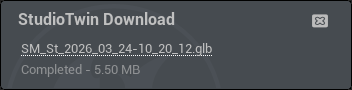
To download the generated GLB or FBX file, navigate to the notification widget and select the hyperlink to open the result in your browser.
After the download notification, an Import notification appears. Select Details, then Show in Content Browser to locate the imported assets. The notification closes automatically when the import succeeds.