Text to Motion
Overview
The Text to Motion tool allows you to generate animations giving one or more text prompts as input.
We usually structure the prompts as follows:
A person <describe action> <describe style>
For example:
A person is walking forward hastily
These prompt examples are a good starting point, but feel free to experiment and let us know which prompts gave you the best results! Also don't forget to visit our Prompt Guidelines section for more information.
Tool Inputs
Single action generation
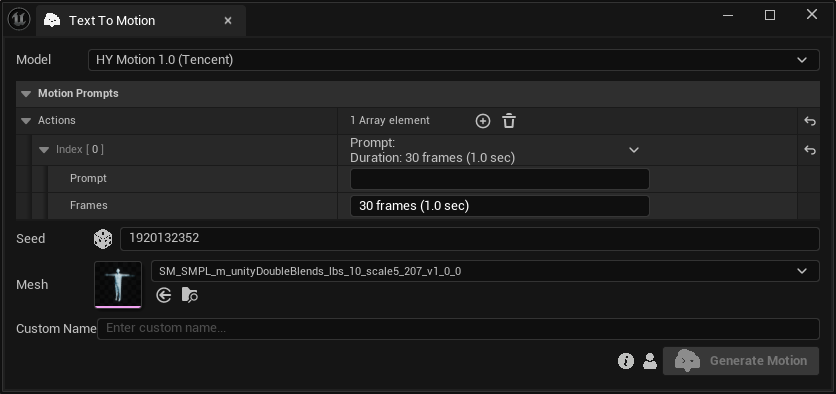
Inputs:
Model:Choose between “HY Motion 1.0 (Tencent)” and “Kimodo (NVIDIA)”.MotionPrompts:The set of actions. Each "Action" corresponds to a distinct motion that is defined by:Prompt:A text prompt describing the motion.Frames:The desired motion duration. “HY Motion” supports 30–360 frames (1–12 seconds), while “Kimodo” supports 30–300 frames (1–10 seconds). Generated animations use 30 FPS.
Seed:A random number used for generating varied outputs with identical inputs. For instance, two generated motions with different seeds, might differ even with the same text prompts and durations.Custom Name:An optional name for the generated motion. Leave it blank to use the default name.
You can also describe multiple actions in a single prompt, using the "then" keyword and separating with commas.
Example: "A person is running forward, then stops and sits down"
However, we suggest using the Multi-action feature described below for this use case.
Multi action generation
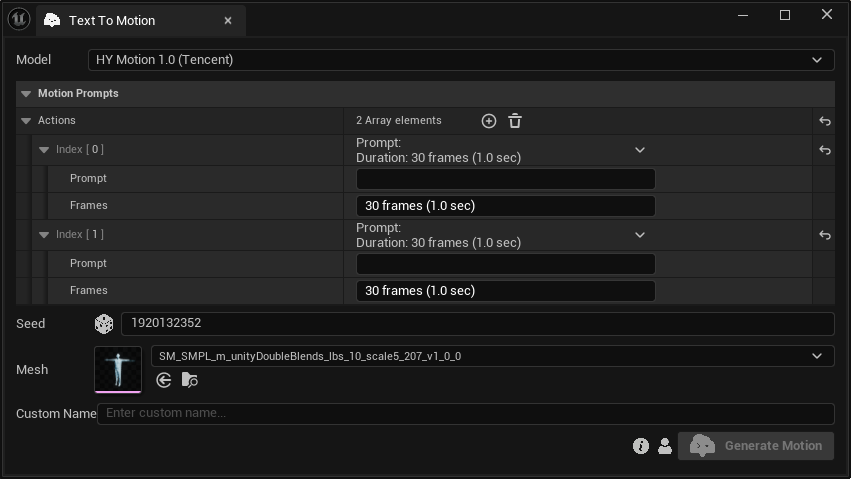
You can define one or more actions (multi-action generation) by adding or removing elements in the "Actions" array. The "Actions" defined will be "stitched together" to produce the final motion result.
You can choose the model selected when this tool opens in Edit → Project Settings → Plugins → StudioTwin Motion Toolkit. Set Default Text to Motion Model. You can still change the model in the tool before generating.
You can use the multi-action feature to create animations that last longer than the single-action limit of the selected model.