Using Custom Parent Materials
When generating a new material, Material Toolkit creates a Material Instance using a Parent Material and assigns the generated albedo, normal, roughness, metalness & heightmap textures as inputs.
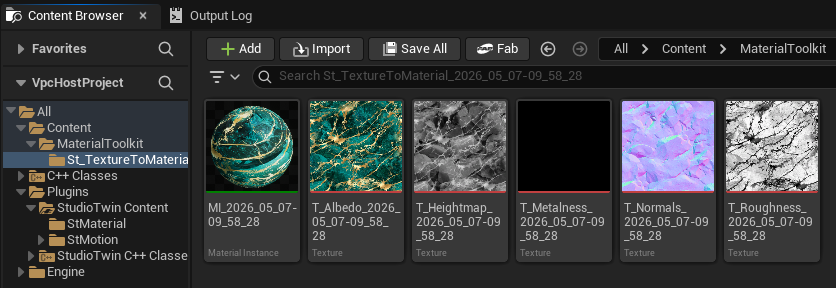
Material instancing allows you to create a parent Material that serves as a base for creating a variety of different-looking material instances. To achieve this flexibility, Material instancing uses a concept called inheritance: the properties of the parent Material are passed to its children. Properties that are designated as parameters in the parent Material are exposed to artists in the Material Instance Editor.
You can find out more about material instancing at Unreal Engine's official documentation.
Default Template Materials
By default, the plugin assigns a custom parent material located in the StudioTwin Plugin Content folder. You can inspect this material here: Plugins/StudioTwin Content/StMaterial/M_StDefaultMaterial.
Users can override this by selecting a specific template in the Material Toolkit settings; otherwise, the toolkit ensures production-ready results by utilizing its optimized internal material.
You can find more information about Bridge plugin at Unreal Engine's official documentation.
Custom Template Material
You can create more complex materials and override the template material. Simply select your preferred material in the StudioTwin Material Toolkit settings section and assign the albedo, normal, roughness metalness & heightmap parameter names.
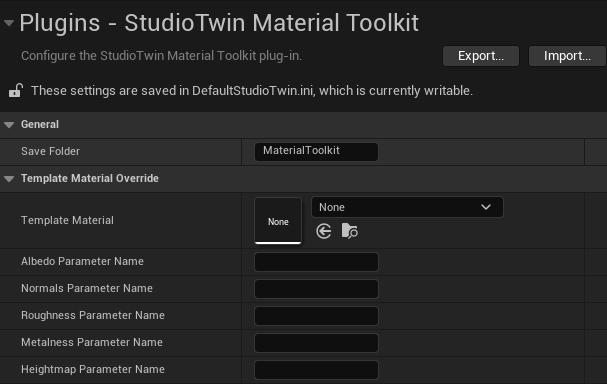
Create a material
- Design a new material, e.g., M_MyCustomMaterial.
- Go to
Details > Nanitesection and set Enable Tesselation ✅ - Add 5 parameters of type TextureSampleParameter2D to handle albedo, normal, roughness, metalness & heightmap textures. These parameters are global parameters, so they are visible from the created Material Instance that will be created when importing a new result from StudioTwin.
Material displacement is a Nanite-exclusive feature in Unreal Engine 5. Ensure the destination mesh is Nanite-enabled, otherwise, the displacement offset will be ignored at render time. Right click your mesh and set Nanite > Enable Nanite ✅
See the Unreal Engine documentation for TextureSampleParameter2D.
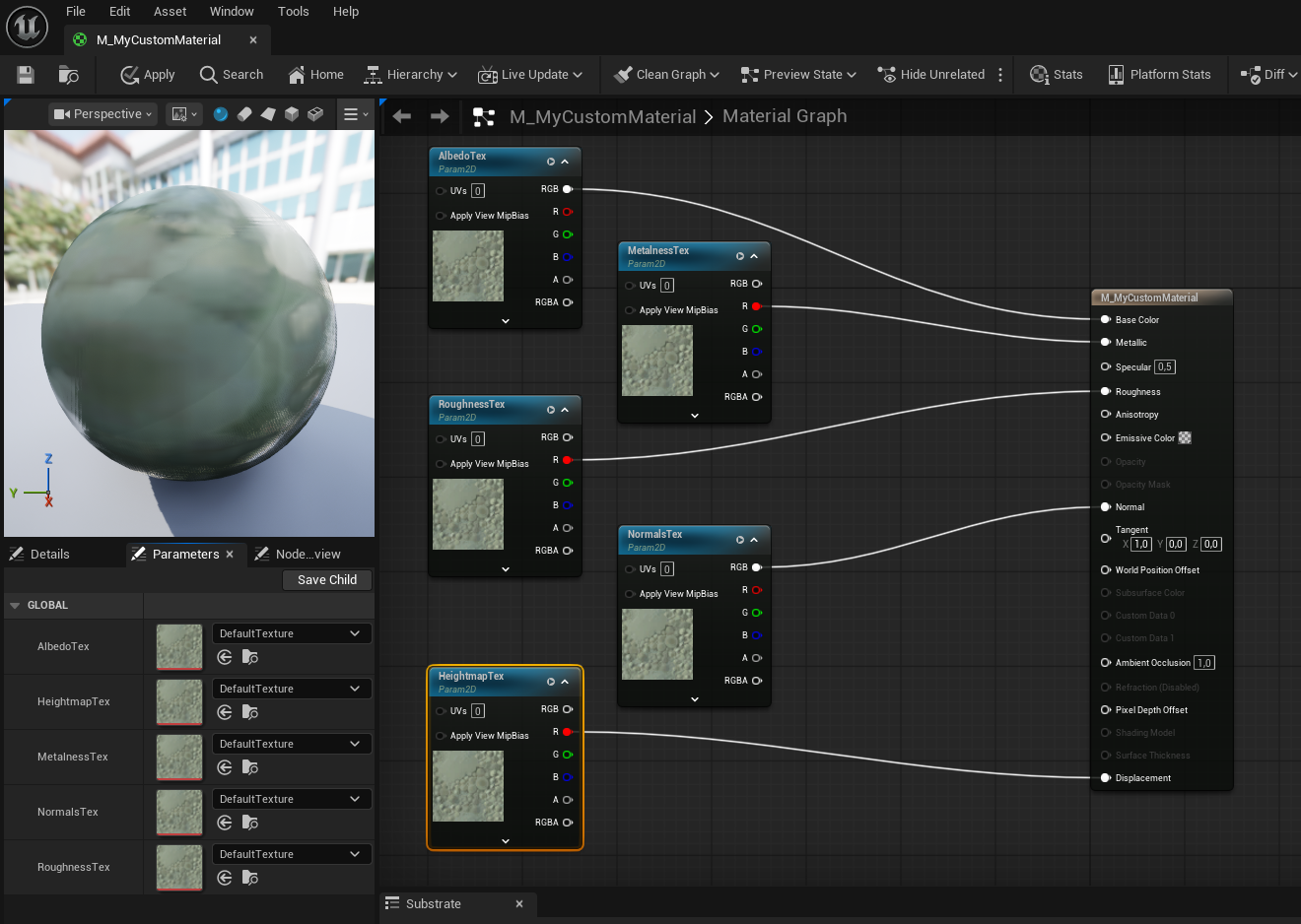
Define parameter names
- You can name the parameters as you like (e.g.,
AlbedoTex,NormalsTex,RoughnessTex,MetalnessTex,HeightmapTex). - Ensure you provide these names in Material Toolkit's custom settings along with your custom material.
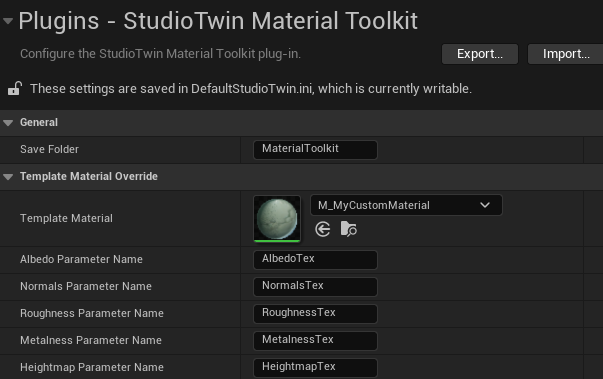
In case you deleted the results, sent a request and forgot to choose your custom material, or want to load a previous request result, don't worry! You can find all your previous results at {Project folder}/.studiotwin/ or download them again from the StudioTwin Dashboard! Then you can re-import the textures and apply them to the material of your choice.