Image to Material
Overview
Image to Material converts specific elements within an image into high-fidelity Unreal Engine materials based on text prompts. By identifying and isolating surfaces from a reference image, the tool produces accurate albedo, normal, roughness, metalness and heightmap. This AI-powered workflow enables artists to lift textures directly from complex scenes and transform them into professional-grade material assets instantly.
Tool Inputs
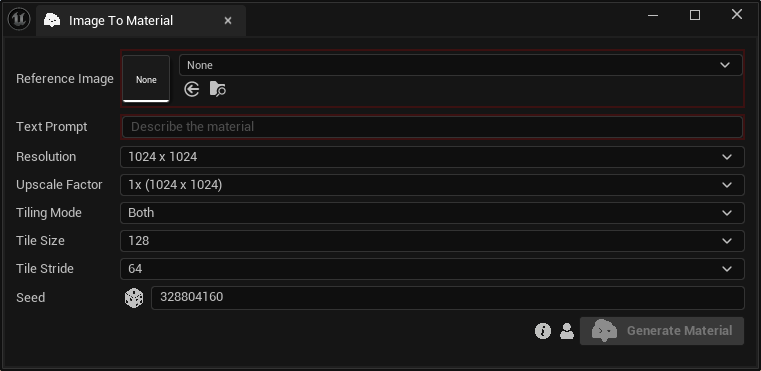
Inputs:
Reference Image:The reference image that contains the material.Text Prompt:Text description of the material that will be extracted from the image.Resolution:The resolution of the generated material textures. Choose between “512 x 512”, "1024 x 1024” and “2048 x 2048”.Upscale Factor:The upscale factor of the generated material textures. Choose between “1x”, "2x” and “4x”.Tiling Mode:The reference image that contains the material. Choose between “Both”, "Horizontal” and “Vertical”.Tile Size:The tile size in latent space. Choose between “32”, "64”, "128” and “256”.Tile Stride:The tile stride in latent space. Choose between “16”, “32”, "64” and "128”.Seed:A random number used for generating varied outputs with identical inputs. For instance, two materials with different seeds, might differ even with the same reference image & text prompt.
The final output resolution is determined by the combination of the base Resolution and the Upscale Factor. For example, selecting a base resolution of 2048 x 2048 with a 4x Upscale Factor will produce a high-fidelity 8K (8192 x 8192) material.
Material Toolkit uses custom Template Materials to import your results. You can learn how to use a custom material during the import process at our Using Custom Parent Materials page.