API Keys
API keys authenticate your organization with the StudioTwin cloud platform. Use one with either the StudioTwin Unreal Engine plugin or StudioTwin Web MCP. Web MCP can operate standalone and is also required for the Blender workflow.
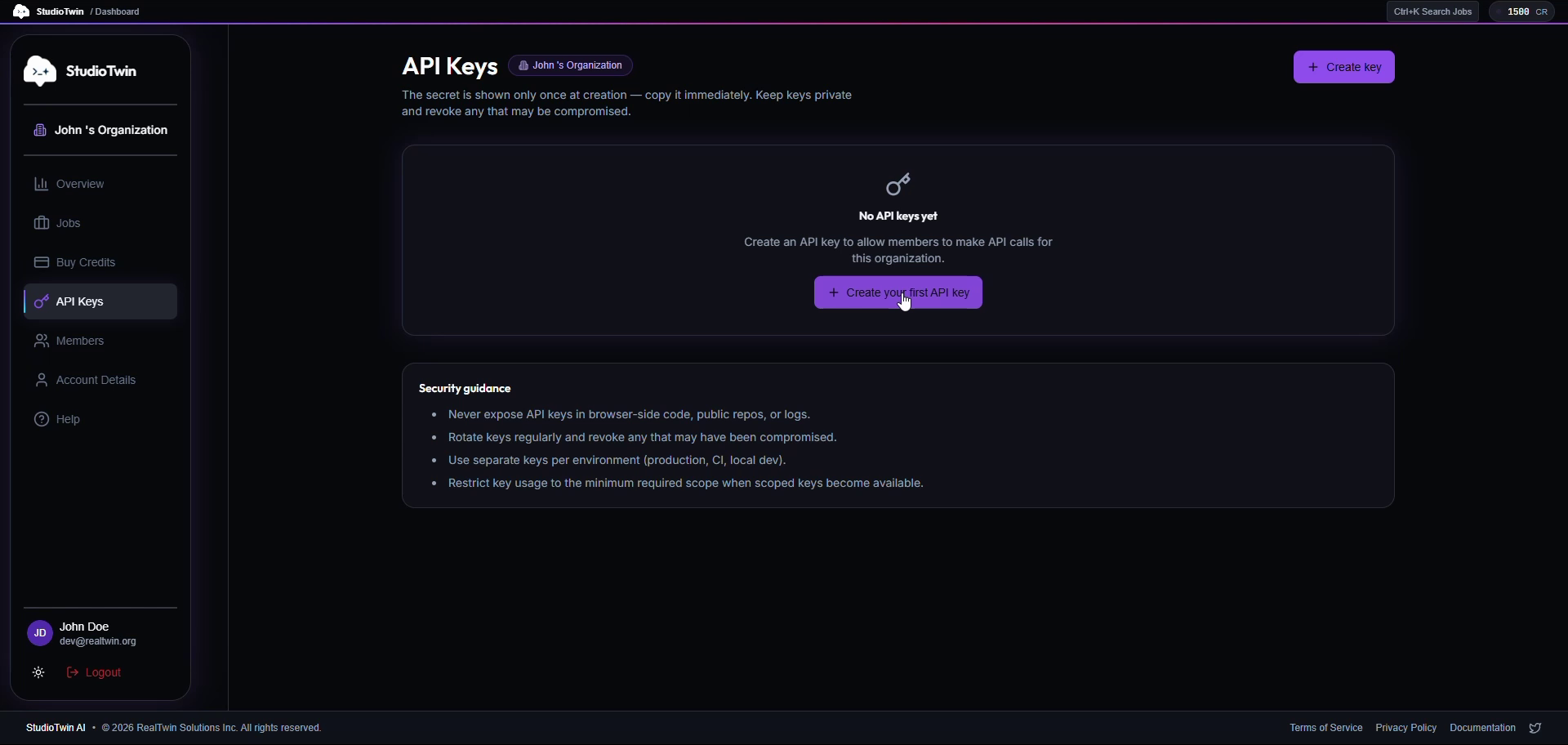
Choose where to configure the key
- Unreal Engine: follow Configure API Key.
- Web and Blender: continue with the canonical StudioTwin Web MCP setup. The key belongs to Web MCP, not Blender, the official Blender MCP, or the StudioTwin Blender addon.
Creating an API Key
- Click "+ Create key" in the top right
- Enter a Name to identify the key, for example "Production"
- Optionally add a Description
- Click "+ Create key"
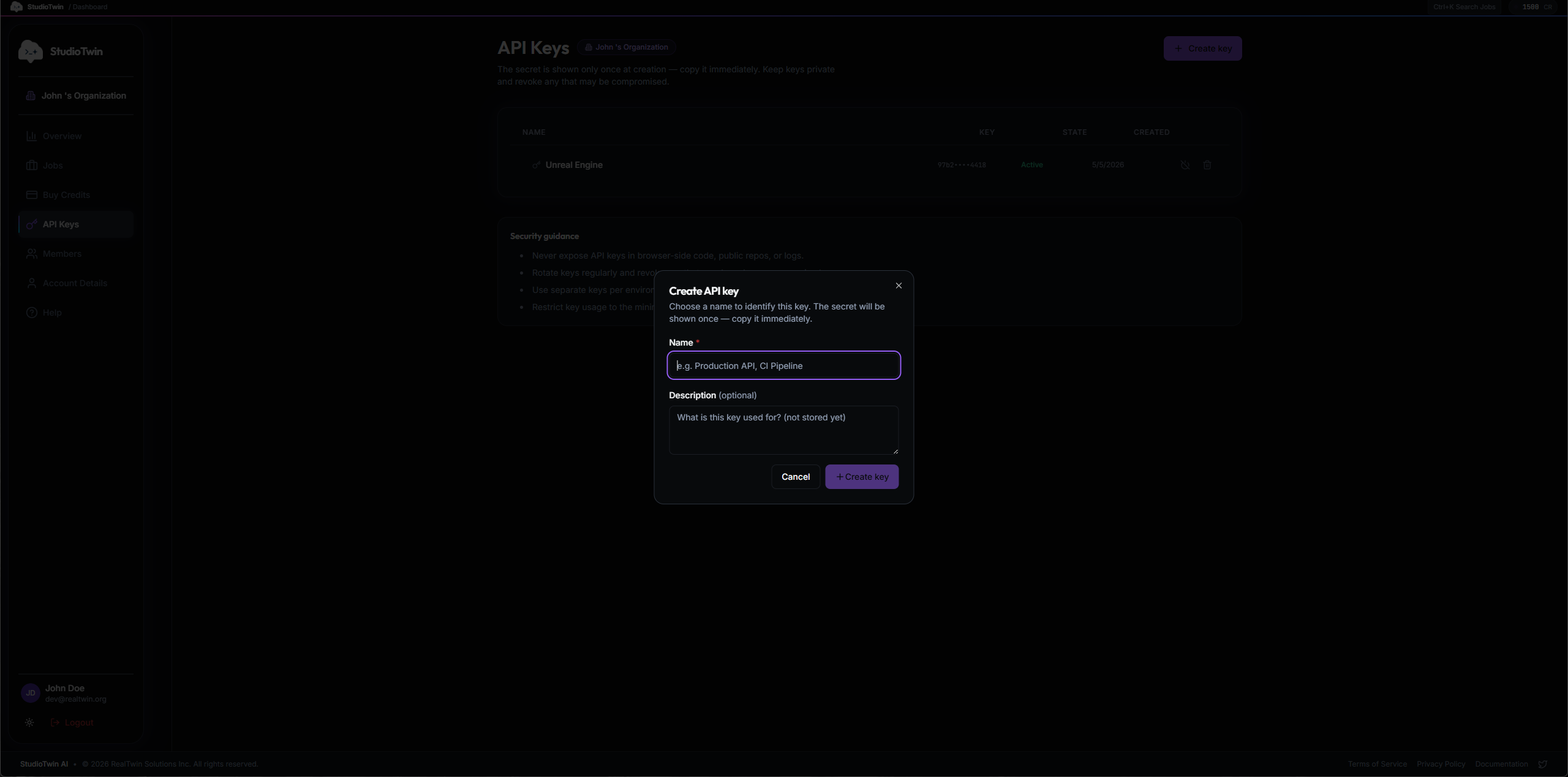
The secret is shown only once at creation. Copy it immediately. It cannot be retrieved again.
After creation, the key appears in the table with its masked value, state, and creation date.
API Keys Table
| Column | Description |
|---|---|
| Name | The identifier you gave the key |
| Key | The key value, partially masked for security |
| State | Active or Suspended |
| Created | Date the key was created |
| Actions | View, suspend, or delete the key |
Suspending and Activating a Key
Click the suspend icon to deactivate a key. The state changes to Suspended and the key can no longer be used.
Click the activate icon to re-enable a suspended key. The state returns to Active.
Suspending a key does not delete it or its history.
Deleting a Key
Click the delete icon to permanently remove a key. This cannot be undone.
Security Guidance
- Never paste a key into chat or store it in Blender, the StudioTwin Blender addon, source control, public repositories, shared documents, or logs
- For Web MCP, configure the key only through the MCP client's secret or environment mechanism; do not put it in client arguments
- Create a separate key per machine or project, so a single key can be suspended without disrupting everyone else