Image to Material
Overview
Image to Material converts specific elements within an image into high-fidelity Unreal Engine materials based on text prompts. By identifying and isolating surfaces from a reference image, the tool produces accurate albedo, normal, roughness, metalness and heightmap. This AI-powered workflow enables artists to lift textures directly from complex scenes and transform them into professional-grade material assets instantly.
Tool Inputs
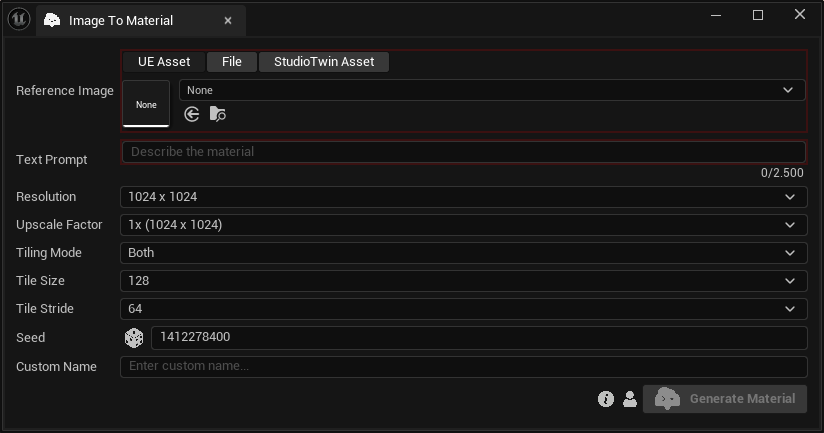
Inputs:
Reference Image:The reference image that contains the material. Learn more about multimodal asset inputs.Text Prompt:Text description of the material that will be extracted from the image. Maximum: 2,500 characters.Resolution:The resolution of the generated material textures. Choose between “512 x 512”, "1024 x 1024” and “2048 x 2048”.Upscale Factor:The upscale factor of the generated material textures. Choose between “1x”, "2x” and “4x”.Tiling Mode:The directions in which the textures will tile. Choose between “Both”, "Horizontal” and “Vertical”.Tile Size:The tile size in latent space. Choose between “32”, "64”, "128” and “256”.Tile Stride:The tile stride in latent space. Choose between “16”, “32”, "64” and "128”.Seed:A random number used for generating varied outputs with identical inputs. For instance, two materials with different seeds, might differ even with the same reference image & text prompt.Custom Name:An optional name for the generated material. Leave it blank to use the default name.
The final output resolution is determined by the combination of the base Resolution and the Upscale Factor. For example, selecting a base resolution of 2048 x 2048 with a 4x Upscale Factor will produce a high-fidelity 8K (8192 x 8192) material.
Material Toolkit uses custom Template Materials to import your results. You can learn how to use a custom material during the import process at our Using Custom Parent Materials page.